
AI Assistant Access
Connect an assistant to approved EqualAI projects, revoke read-only access, and understand the separate external-provider connection workflow.
View as MarkdownAI Assistant Access lets an AI assistant read EqualAI information from projects you approve. It uses MCP, a connection format supported by compatible assistants. You sign in to EqualAI and approve the project scope in your browser.
This is different from connecting an external provider for EqualAI to call. The two directions have separate connections and confirmations.
What an assistant can access
An approved assistant can read supported project information such as project details, tracked prompts, competitors, metrics, citation/report metadata, recommendation titles, and some recent answer samples. Read-only does not mean public: approve only an assistant with which you intend to share that project information.
The connection cannot create, edit, or delete EqualAI records; manage billing or team access; run prompts; or spend EqualAI credits.
Access remains limited by your current project permissions and usable subscription access. A prior approval does not preserve access after you lose permission to the project.
Ask for product help
The same connection can search EqualAI's documentation and read complete guides. No second connector is needed. Try asking, “How does EqualAI calculate AI visibility?” or “Where do I change a prompt's tracking frequency?”
Documentation explains how the product works; project results show what happened in your workspace. An assistant can use both, but a guide is not evidence of your project's performance. Documentation citations open public pages on docs.equalai.io, unlike the private record links described below.
The assistant reads a bundled copy of the guides, updated with application releases, rather than fetching the website live. If a guide and the assistant disagree, open the cited page for the latest published instructions. The MCP connection still requires valid authorization and access to at least one approved project, even when asking only for documentation.
Connect an assistant
- Sign in and open AI Assistant Access.
- Under Connect an assistant, use Copy beside the displayed server URL.
- Choose the Claude, ChatGPT, Claude Code, or Other assistants instructions that match your client.
- Add the displayed server URL in the assistant's connection settings and begin authentication.
- In the EqualAI authorization page, inspect the client information and select only the projects you intend to share.
- Approve the request, then return to the assistant to finish connecting.
- Check Connected assistants for the completed connection and its project badges.
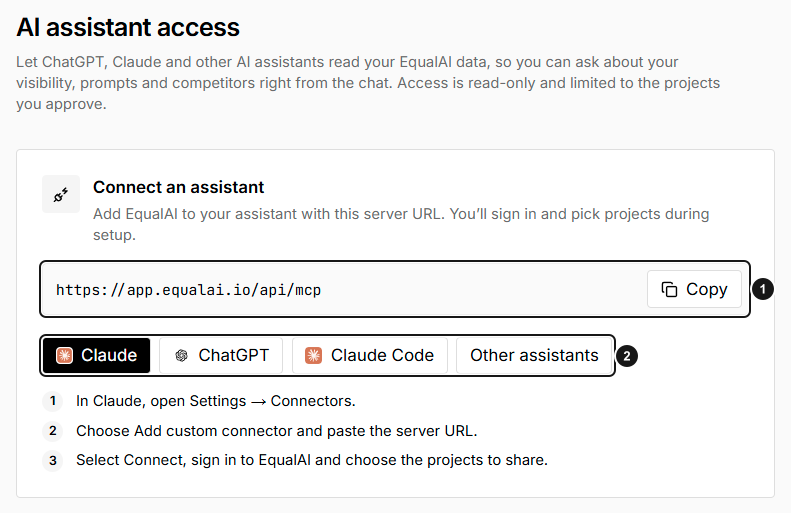
1. Copy the public MCP server URL. 2. Choose your assistant for its setup steps. The Claude instructions are shown here; this setup view does not indicate that an assistant has connected or received project access.
Use the URL displayed by EqualAI rather than a guessed endpoint. For Claude Code, copy the command shown in its tab rather than substituting an unrelated API address. Assistant menus and connector availability can vary by product and plan.
An authorization request expires after ten minutes. Up to 20 projects can be approved in one request. If the request expires, start the connection again from the assistant.
Check the client before approving
Client names are self-reported, not proof of identity. Only approve a connection you initiated. Inspect the destination and project list; cancel an unexpected request rather than treating a familiar assistant name as verification.
No available project can mean you lack current project access or a qualifying active subscription. Ask an authorized workspace admin to review that access instead of approving a different project to work around it.
Review and revoke connections
Connected assistants shows active connections, approved projects, and the connection date.
To end one:
- Choose Revoke access for the intended connection.
- Review the confirmation.
- Choose Confirm revoke.
Revocation stops future access through that connection. It cannot retrieve information already shared with the assistant or delete the assistant's existing conversation history.
Approved attempts that the assistant never completed grant no access. They clear after 30 minutes; use Remove to clear one sooner, then reconnect from the assistant if needed. The ended-connection list distinguishes Revoked from Not completed. The page shows the newest 200 connections.
Open a linked EqualAI record
An assistant may return a link to a read-only EqualAI record page for a project, tracked prompt, competitor, report, citation, or recommendation.
You must sign in and still have access to the associated project. A link does not make the record public or give its recipient access. Missing or inaccessible records may not be shown.
These browser pages display selected fields; report payloads and captured answer bodies are not included on the record page. Use Open dashboard to continue in EqualAI or Manage assistant access to review connections. HTTPS source links can take you to an external website.
External MCP connections: the other direction
External MCP connections lets EqualAI send a manually confirmed, read-only tool request to a reviewed external provider. It does not give that provider general access to your EqualAI projects and is not the same as an inbound assistant grant.
Connect a reviewed provider
A workspace owner/admin must connect or disconnect a provider.
- Select the intended accessible project.
- Choose Connect a provider and a Reviewed provider.
- Review the project credential-sharing acknowledgement.
- Complete the displayed OAuth flow or enter the requested bearer token.
- For a bearer connection, choose Save encrypted bearer connection.
- Verify that the connection shows Connected, rather than Needs attention.
The credential is shared for authorized use within that project. Authorized project users, including viewers, can confirm reviewed tool calls without seeing the stored credential. Do not connect a personal credential unless its use by those project users is acceptable.
If there are no reviewed providers or no accessible active projects, there may be nothing available to connect. Arbitrary custom endpoints are not an option in this workflow.
Review and confirm a tool call
- Select a reviewed tool from the connection.
- Read its Reviewed JSON input schema.
- Enter the Exact JSON arguments you intend to send.
- Choose Review disclosure. This prepares a review; it does not send the tool request yet.
- Inspect Confirm external disclosure, including the provider endpoint, tool, and arguments.
- Choose Confirm and send these exact arguments, or Cancel.
The confirmation lasts two minutes and can be used once. If it expires, review the disclosure again. Changing the intended arguments requires a new review rather than reusing a previous confirmation.
Provider discovery sends the stored credential and lists metadata; it does not fetch provider resources. Tool responses are shown as Untrusted provider output. Treat them as third-party data, not instructions to run code, change settings, or disclose more information. Links, HTML, and instructions in that output are not automatically executed.
The workflow does not automatically chain tools, import provider resources, generate content, or make payments.
Disconnect and recover
Disconnecting removes the EqualAI connection, but does not revoke the credential at the provider. Revoke or rotate it with the provider separately when appropriate.
- Needs attention: ask the workspace admin to review authorization and reconnect if needed.
- Expired confirmation: select the tool and review the disclosure again.
- Changed tool schema: the reviewed configuration must be updated before it can be used; contact support.
- Rate limit: wait one minute before retrying.