
Schedule and run prompts
Configure automatic tracking, run all or selected prompts, and review model, fan-out, timezone, and credit choices before queuing work.
View as MarkdownThe Schedule and run prompts dialog separates two actions: saving automatic tracking settings and queuing a manual run. A manual run does not save your schedule changes.
Before you start
Select the intended project and confirm that it has tracked prompts. You need project editing access, usable subscription access, and access to the models you choose. Running prompts also requires enough AI credits.
Schedules apply to the project's regular tracked prompts, not the onboarding-only prompt set. Selecting a few rows on the prompts page controls a manual selected-prompt run; it does not create a schedule for only those rows.
Set up automatic runs
- Open Schedule and run prompts.
- Set Automatic runs to On.
- Choose Weekly or Monthly.
- For weekly runs, select the weekdays and interval. For monthly runs, choose the day of the month and interval.
- Choose the models and review any locked add-on models.
- Review the run time and the timezone displayed beside it.
- Review the upcoming-run preview.
- Choose Save schedule and wait for Schedule saved.
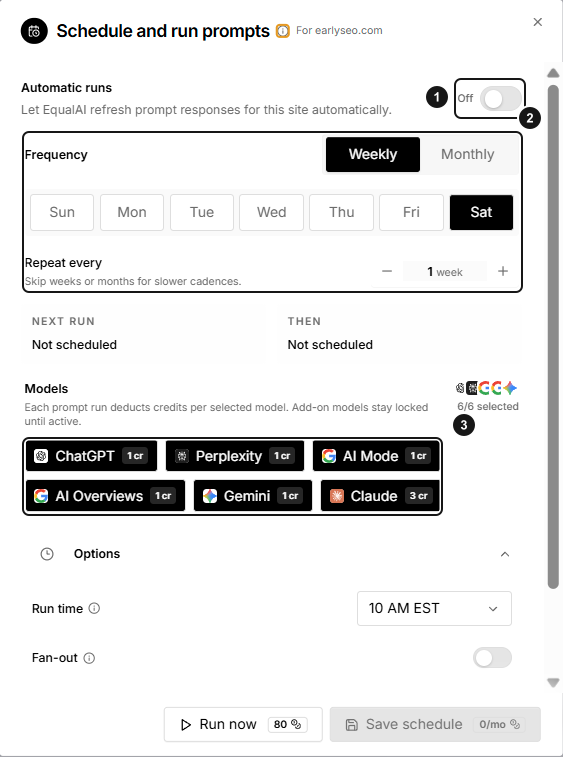
EarlySEO example setup. 1. Automatic runs are Off. 2. Cadence controls. 3. Selected models and credit costs. Save schedule is disabled in this unchanged example; it does not show an enabled or newly saved schedule. Use the costs displayed in your own dialog.
Intervals can span 1–12 weeks or months. For a monthly day beyond the end of a shorter month, the run falls on that month's last day.
The time control uses your selected app timezone, while the schedule is stored in UTC. Check the preview after changing your timezone or near a seasonal clock change; do not assume the same displayed local hour will apply all year.
To stop future automatic runs, set Automatic runs to Off and save. This is not a cancellation control for work already queued.
Saving does not spend credits
Save schedule updates configuration. The credit estimate is a planning aid, not a charge for pressing Save. Actual execution requires available credits when work is queued. A saved schedule therefore does not guarantee that every future run will execute if the balance or model access changes.
Run all eligible prompts now
Choose the models and fan-out option for this run, then use Run now. EqualAI queues eligible prompts from the selected project with those choices.
The manual run uses the choices currently displayed, even if they differ from your saved schedule. To retain those choices for future automatic runs, use Save schedule separately.
A success message confirms that work was queued. Follow the active/queued status; it does not promise that all model answers are already complete.
Run selected prompts
Select prompts on the prompts page before opening the dialog. In Run selected prompts, confirm the selected scope, choose models and fan-out, and use the run button showing the selected count.
Only those prompts are submitted. The saved project schedule stays unchanged. If a scope selector offers all prompts instead, check it carefully before submitting: switching scope changes the work and credit estimate.
Understand model and delivery costs
Each selected model contributes to the cost of a run. Models can have different credit weights; use the per-model cost and total shown in the dialog rather than assuming one credit per model.
Fan-out adds phrasing variations alongside the original prompt. The helper shows the number of variations and resulting multiplier. More variations mean more execution work and higher credit use.
Instant Run applies the displayed premium credit multiplier to this manual run. Choose Run instantly or Run selected instantly only after reviewing that estimate. It does not switch the saved schedule to Instant: automatic runs remain on Standard delivery. Faster delivery is not a fixed completion-time guarantee.
Disabled buttons and run errors
- No eligible prompts: add or select regular tracked prompts and reopen the dialog.
- No selected models: choose at least one available model.
- Locked model: ask a workspace admin about the required plan or active add-on.
- Cooldown/countdown: wait until the displayed delay ends before another run.
- Not enough credits: reduce models or fan-out, narrow the selected prompts, or review workspace usage. Instant Run may be blocked even when Standard is affordable.
- Save schedule disabled: there may be no unsaved change; a model selection is also required.
- Another teammate just ran prompts: the status or balance can change between opening and submitting. Review refreshed values before retrying.
- Queue or connection error: do not assume the run started. Check status and contact support if it persists.