
Track competitors
Manage project-specific competitors, review suggestions, and choose identifiers that help recognize competing brands in AI answers.
View as MarkdownCompetitors give a project a defined comparison set. Each competitor has a name, domain, chart color, and optional identifiers or aliases. Adding a competitor does not create another project or give anyone access to your workspace.
Before you edit
Select the intended project. Competitor changes require editing access and usable subscription access. The competitor allowance applies per project; it is different from the workspace's project and tracked-prompt capacity.
Open Competitors. The page has Current Competitors and Suggested tabs. Search by competitor name or domain; the current list also supports matching identifiers.
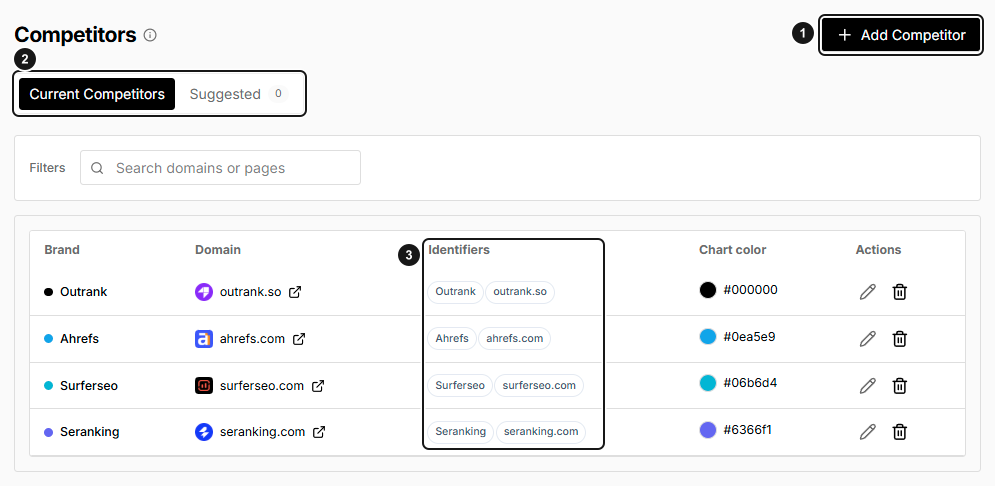
EarlySEO example comparison set. 1. Add Competitor. 2. Current or Suggested competitors. 3. Brand identifiers used for matching. Choose competitors and aliases relevant to your own project.
Add a competitor
- Choose Add Competitor.
- Enter the competitor's Name and Domain.
- Choose a Color to distinguish it in comparisons.
- Add relevant Identifiers and aliases, if needed.
- Choose Save competitor.
Check that the saved name and domain appear in Current Competitors. Review the existing list before adding a domain that is already tracked; a repeated domain is not a reliable way to create a separate comparison entry.
Choose precise identifiers
Identifiers are additional names that help recognize the competitor in AI answers. Suitable choices include distinctive abbreviations or a strongly associated product name. Avoid a generic category term such as “software” that could describe many unrelated companies.
You can paste comma-separated aliases and remove individual alias chips. The project's Alternative Names field and the competitor alias editor are separate settings: editing one does not configure the other.
Synthetic example: for a fictional competitor named Northstar Outdoor, an alias such as Northstar Packs could be useful if it is a real name that brand uses. Do not add a name solely to make more answers count.
Review suggestions
Open Suggested and inspect the name, domain, and explanation before choosing Add. A suggestion is a candidate, not an endorsement or a verified direct competitor.
Adding a suggestion uses the same project capacity as manually adding a competitor. If the project is at its limit, review existing competitors or ask a workspace admin to review the plan.
Use the dismiss/reject control to hide an irrelevant suggestion from the current view. It may appear again on a later visit; dismissal should not be treated as a permanent exclusion rule.
Edit or remove an entry
Use the edit action beside a current competitor to update its identity, aliases, or chart color, then save. Color is a visual distinction, not a measure of performance.
Use the delete action and confirm Delete Competitor to remove an entry from the project's current competitor list. Before removing one that your team relies on, agree on the replacement comparison set. Do not assume a configuration change reruns prompts or regenerates historical answers.
Troubleshooting
- No current competitors: add a relevant competitor manually or review suggestions.
- No search results: clear the query and confirm the selected project.
- Wrong brand recognized: check the domain and remove ambiguous identifiers.
- Save or add blocked: confirm editing permissions, subscription access, and the per-project competitor allowance.
- Results have not changed: competitor configuration is not itself a prompt run. Review scheduling and manual runs.