
Prompts
Add and organize tracked questions, review suggestions, and investigate prompt-level evidence.
View as MarkdownOpen Prompts for the selected project. A prompt is a question you choose to track; its results are the responses collected for its configured models and runs.
Add questions to track
- Select Add Prompts.
- Choose the appropriate creation method. Single prompt is useful for a known question; Bulk import is useful for an existing list. Other methods help discover candidates.
- Review the questions, topic, model, country, language, and other settings offered by that method.
- Save the prompts, then use Run prompts to open the run and schedule controls when you are ready to collect answers.
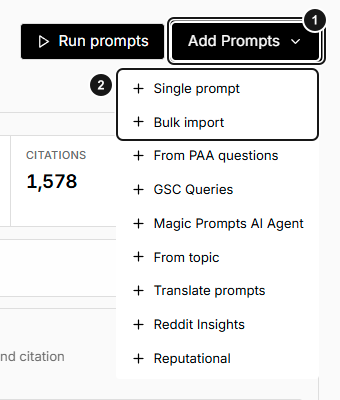
1. Add Prompts menu. 2. Single prompt or Bulk import. Choose the method that fits your questions; opening this menu does not add or run a prompt.
Saving a prompt or accepting a suggestion is not the same as completing an execution. See Prompt Explorer for creation methods and schedules for running questions. Run actions can consume the workspace's execution allowance.
Organize the tracked list
Use the search box, date range, All filters, and topic rail to narrow the list. Columns include Prompt, Type, Models, Country, Responses, Mentions, Mention Rate, Citations, Tags, Last Update, and Creation Date.
Use tags to compare a consistent subset, such as a product line or campaign. Editors can change prompt details and tags through the available row controls. Viewers can inspect results but cannot mutate prompts.
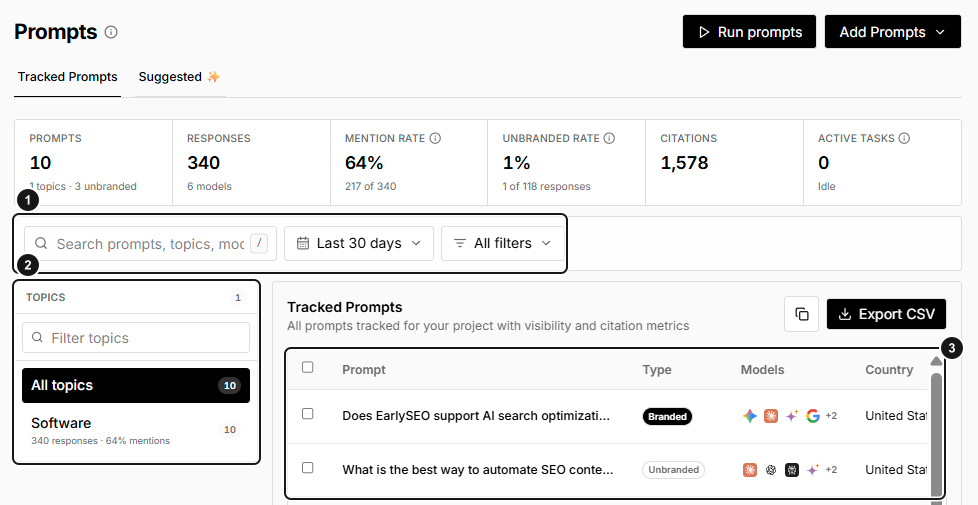
EarlySEO example snapshot. 1. Search, date and filters. 2. Topic selection. 3. Tracked prompt rows. The questions and counts shown are examples, not a required tracking set.
Export CSV downloads the table export; the copy control copies CSV to the clipboard. Check the current filters before using an export in a comparison.
Deleting tracked prompts also removes their tracked responses. Export any results you need before deleting, and review the confirmation carefully. Bulk deletion affects every selected prompt.
Review suggestions
Open Suggested to review project-specific candidates. Accept adds a candidate to tracking; Reject removes it from consideration. Review wording before accepting: a suggested question is not evidence of search demand or a guarantee that every provider supports the same answer features.
Inspect a prompt
Open a tracked prompt to inspect its results. Depending on available evidence, the detail view includes Overview, Source distribution, Answer signals, Brands named by model, Read/not cited, Query fanouts, and AI Chats.
Use these sections to separate brand mentions, linked citations, and pages read without a citation. Open the underlying response when a result needs explanation. Provider-specific evidence may be absent without indicating a tracking failure.
Troubleshooting
- No responses after saving: wait for a completed run; saving alone does not execute prompts.
- Actions are unavailable: confirm editor access and available allowance.
- A suggestion is missing: check the correct project and Suggested tab.
- Counts differ from Overview: compare filters and scope, then inspect individual responses rather than assuming all cards aggregate identically.
Related guides
Create and configure a project
Work through website setup, topics, competitors, prompts, scheduling, and plan activation without confusing project and workspace settings.
Prompt Explorer
Discover, draft, review, and create tracked prompts from your own questions, search data, discussions, or guided templates.