
Cloudflare
Connect a scoped Cloudflare API token, select a zone, and maintain the AI Agents analytics connection.
View as MarkdownCloudflare supplies request analytics to AI Agents. You need the correct zone and permissions, not merely a website with the same name as your EqualAI project. Available analytics also depends on Cloudflare access and your account's capabilities.
Prerequisites
- Workspace administrator access in EqualAI to connect, select, sync, or disconnect the integration.
- Access to the intended Cloudflare zone.
- A Cloudflare API token with Zone:Read and Analytics:Read for the zones you intend to inspect.
- Any applicable EqualAI plan access for the feature.
Use a narrowly scoped token. Do not use a global API key or include unrelated zones simply for convenience.
Connect a zone
- Select the correct EqualAI project and open AI Visibility → AI Agents.
- In 1. Connect Cloudflare, choose Create token. Copy link provides the same token-creation destination if needed.
- In Cloudflare, review the prefilled permissions, choose the appropriate zone scope, and create the token.
- Paste it into Cloudflare API Token and choose Connect Cloudflare.
- In 2. Select zone, locate the intended zone and choose Use this zone.
- In 3. Analytics, confirm Connection, Zone, Data, and Updated, then select 7D, 30D, or 90D.
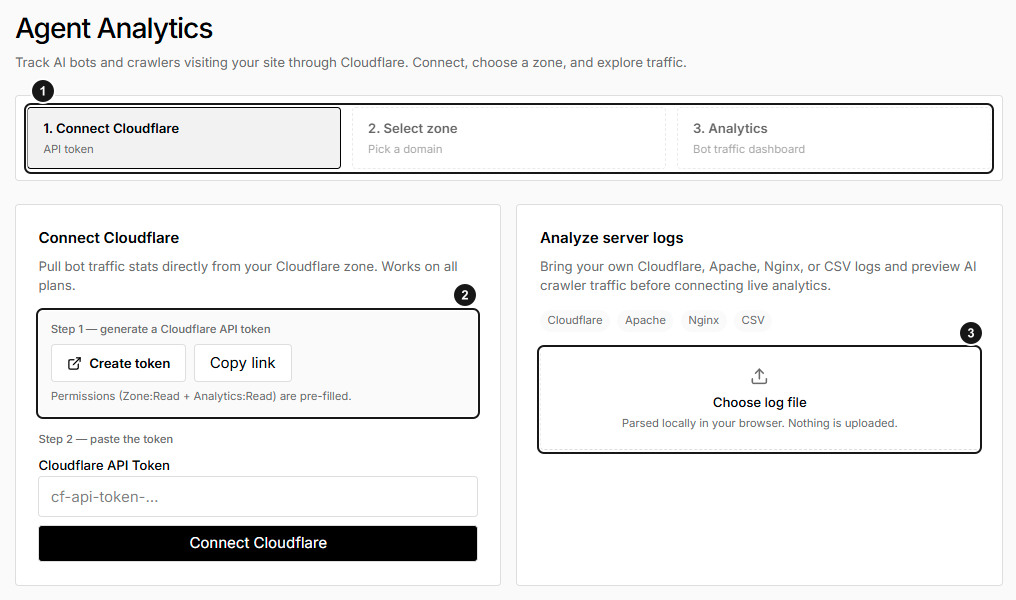
EarlySEO before a Cloudflare connection is configured; the token field is empty. 1. Connection, zone selection and analytics. 2. Create a limited Cloudflare API token. 3. Optional local log preview. The preview is separate from connecting a zone.
The zone list retrieves up to the first 50 accessible zones. If an intended zone is missing, check token scope and permissions; narrowing the token to the intended zone can avoid an oversized selection list.
Refresh and disconnect
The zone-selection screen offers Refresh Cloudflare zones and Sync now. Use them after permission or scope changes. If the UI requires a token again, paste an authorized token; you can also supply a replacement. The connection can retain a stored credential beyond its short-lived session cache, so do not interpret a cache message as a security guarantee that all token access has expired.
On the dashboard, Sync refreshes connection data and requests updated analytics. Analytics can otherwise be cached for 30 minutes. A failed refresh can leave older data visible; check the error and timestamp rather than assuming the chart is current.
Disconnect clears EqualAI's stored Cloudflare credential and marks the connection disconnected. Existing integration metadata and saved analytics are not a guaranteed erasure target. It does not delete Cloudflare logs or revoke the token at Cloudflare.
If the token should no longer be usable anywhere, revoke it in Cloudflare as a separate action. Coordinate first if that token is shared with another authorized application. Reconnect with a new scoped token when needed.
Troubleshooting
- No zones attached: verify the token's zone resources and permissions, then use Sync now.
- Token or permission error: create or supply a token with the required permissions for the target zone, then reconnect or sync.
- No request data: verify the zone and selected period and distinguish a successful zero response from a displayed Cloudflare error.
- Total requests but no recognized bots: user-agent matching and returned-group limits can omit activity. Read AI Agents scope.
For a separate browser-only preview without connecting Cloudflare, use Analyze server logs on the connection screen. It is not an upload or a replacement for a zone connection.