
Record annotations
Add project-shared notes for reporting context, filter by category, and understand annotation dates and shared tag categories.
View as MarkdownAnnotations record events that help a team interpret results, such as a page update or the start of a campaign. They provide context, not evidence that the recorded event caused a change in visibility.
Annotations on this page are shared with the project. Do not put private notes, credentials, or personal information into a title or description.
Create an annotation
Select the intended project and open Annotations. Creating annotations requires project editing access and a plan that includes the feature.
- Choose New Annotation.
- Enter a descriptive Title.
- Add a Description (optional) explaining what changed.
- Choose a Category, or leave No category.
- Choose a Color.
- Choose Create Annotation.
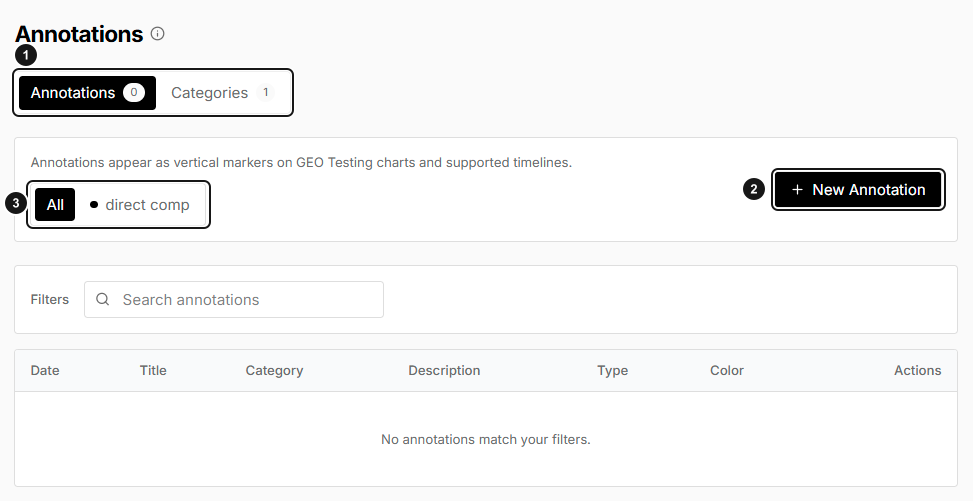
This EarlySEO example has no saved annotations. 1. Annotations and Categories. 2. Create an annotation. 3. Filter by category or search. Start with the create action to record your own event.
The new entry appears in the table with its date, title, category, description, type, and color. Type: User identifies a user-created annotation; it is not a privacy setting.
Date behavior
Annotations use their creation date. Although the creation form includes a Date field, selecting an earlier date does not backdate the annotation. If you are documenting an older event, put its actual date in the description so teammates can distinguish the event from the day the note was added.
Synthetic example: Updated backpack buying guide could have a description such as Example event: guide revised on 10 June; note recorded later. This is illustrative content, not a customer event.
Do not assume annotations appear on every chart. Use the reporting views that support annotation markers, and check their date range when looking for a note.
Find, edit, or delete a note
Use the category filters and search to narrow the table. Search matches title, description, and category. No annotations match your filters can mean that your filter is too narrow, not that the project has no annotations.
Use the row's pencil action to open Edit Annotation. Review the Title, Description, Category, and Color, then save. Changing those fields does not change the creation date.
Use the delete action and confirm Delete Annotation to remove the note. Deletion is a project change; confirm that the team no longer needs its context.
Manage categories
The Categories tab uses the same tags as Tags. A category created here becomes available for prompt tagging as well.
- Open Categories.
- Choose New Category.
- Enter Name and choose Color.
- Choose Create Category.
The Sort Order field does not change the displayed category ordering. Use the category names and filters to locate a category instead of relying on that field.
For tag-name changes, use the Tags page. Existing annotations retain their category text rather than automatically following a renamed tag; review their category fields if you need consistent filtering after a rename.
Troubleshooting
- An older event appears on today's date: the annotation records its creation date; include the actual event date in the description.
- Unexpected category names: categories are shared project tags and may have been created while organizing prompts.
- Category count differs from prompt count: category cards count annotations; the Tags table counts tagged prompts.
- Create is blocked: confirm role and plan access with a workspace admin.
- No marker in a report: check the report's date range and whether that view supports annotations. The annotation list is the place to confirm the saved note.
Related guides
Organize prompts with tags
Create project tags, import a simple CSV, assign tags to prompts, and understand what the AI suggestion action actually does.
Schedule and run prompts
Configure automatic tracking, run all or selected prompts, and review model, fan-out, timezone, and credit choices before queuing work.