
Optimization
Run technical checks for your project URL, interpret saved reports, and distinguish website diagnostics from tracked-response visibility.
View as MarkdownOpen AI Visibility → Optimization to reach GEO Optimization. This workspace combines eight technical checks with an AI Visibility summary. Technical scores describe observable website signals; they do not predict rankings or guarantee inclusion in an AI answer.
Before running checks
Confirm the current project and its website domain in Project Settings. A missing domain prevents website analysis. Running checks requires project editing permission.
The analyzers retrieve the project URL's initial HTML and relevant root files. They do not execute your JavaScript application, crawl every linked page, or audit an entire product catalog. A page whose important content appears only after JavaScript runs may therefore look incomplete.
Run a check
- Open a check card or Run a single check.
- Choose the corresponding action below.
- Wait for the result, then inspect the evidence and recommendations in the report.
- Make justified changes in your own website or publishing system. EqualAI does not apply those website changes for you.
- Run the check again from Optimization to create a new history result for comparison.
| Action | What it examines |
|---|---|
| Generate llms.txt | Published llms.txt and llms-full.txt files. Despite the action's name, it currently analyzes files rather than generating or publishing one. |
| Analyze robots.txt | Crawler policy categories from the root robots.txt file. |
| Check Crawlability | Initial HTML accessibility signals. |
| Analyze Schema | JSON-LD presence, parsing, and selected types. |
| Check Content | Content Readiness: text length and page-structure signals. |
| Check Discoverability | Metadata, indexing hints, and root discovery files. |
| Check Site Structure | Links, headings, canonical, and sitemap. |
| Check Shopping Feed | Product markup in the page, not a submitted merchant feed. |
| AI Visibility Report | A summary of tracked responses, not a new technical crawl or model run. |
Run all checks runs the eight technical checks. It does not run AI Visibility or execute tracked prompts.
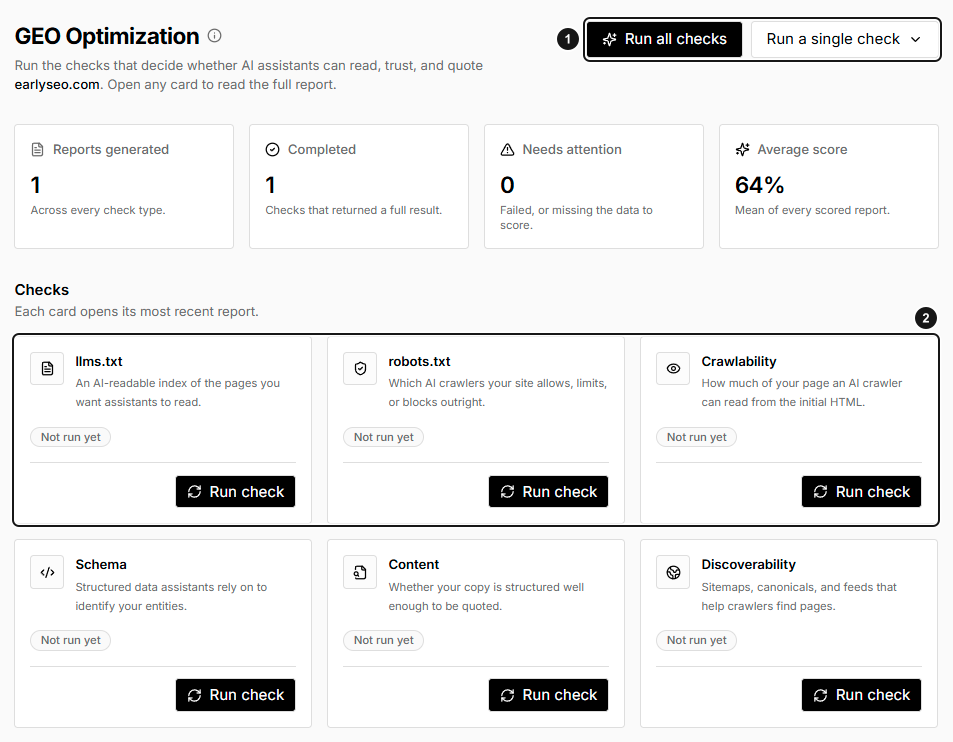
EarlySEO before technical checks have run. 1. Run all checks or choose one. 2. Read the current status of each check. Not run yet is not a failed check or a score of zero; choosing a run action starts analysis.
Use Run history
The summary cards show Reports generated, Completed, Needs attention, and Average score. Check cards show the latest available result or Not run yet.
Use the report-type tabs, All statuses, and Search by domain, check, or result to find an earlier result. Available statuses include Completed, Failed, Insufficient data, Pending, and Processing. A failed or insufficient result is not equivalent to a measured zero score. Missing robots.txt or llms.txt files can appear without a numerical history score.
Open a row to inspect its report. Where offered, export a stored report as JSON or delete that history entry. Deleting a report does not change your website. The AI Visibility history entry can be a current, derived summary rather than a deletable stored technical run.
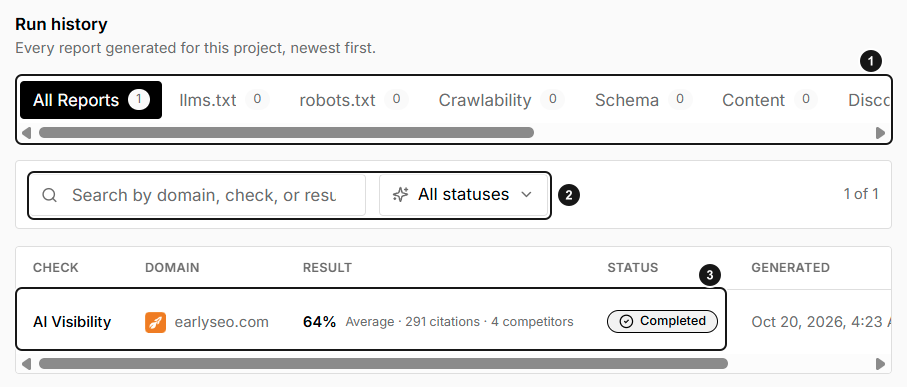
EarlySEO example history. 1. Filter by check type. 2. Search and status filters. 3. Read an existing completed report. Only AI Visibility is Completed here; this derived summary is not evidence that a technical website check has run.
Saved reports, Refresh, Export, and Share
Opening a saved technical report displays its recorded payload. Refresh analyzes the current project URL and updates the displayed result; it does not replace that saved history payload. To retain a new history entry, run the check from Optimization.
On technical report pages, Export downloads the currently displayed analysis as JSON. Share copies the page URL; it does not make the report public or grant access to another person. Back to GEO Optimization returns to the relevant check type.
An automatically loaded technical result can be reused for 15 minutes. Explicit check runs and Refresh request new analysis.
When a check cannot finish
Check the URL, public availability, and any displayed fetch error. Authentication requirements, anti-bot challenges, and server errors can prevent analysis. Some independently fetched files may still produce signals even if the main page cannot be read. Fix access deliberately; do not remove protections or intentional crawler restrictions merely to improve a score.
Scores use weighted checks rounded to a 0–100 result. Read the failed checks before prioritizing work: a lower score may reflect an intentionally absent or irrelevant feature rather than a defect.