
Google Analytics
Connect a GA4 property to the current project, verify traffic data, and manage property changes or disconnection.
View as MarkdownConnect Google Analytics 4 to use Traffic Analytics. EqualAI reads analytics data; this setup does not install a tracking tag, configure collection on your website, or import every event from the property.
Prerequisites
- Workspace administrator access in EqualAI for connection, property selection, and disconnection.
- A Google account with access to the intended GA4 property.
- A GA4 property already collecting your website's traffic.
- Google OAuth configured for your EqualAI deployment. A disabled Google OAuth not configured control requires deployment administration, not a different property selection.
Connect and select a property
- Select the correct EqualAI project and open AI Visibility → Traffic Analytics.
- On Connect Analytics, choose Connect with Google. If offered, Reconnect with Google starts a new authorization flow.
- Complete Google's account and permission screens using the account that can access your property.
- On Select Property, review Choose your property and select the desired property row.
- Confirm the selected property in the dashboard, then choose a date range and review the data status.
The selected property belongs to this EqualAI project's configuration. Connecting an account alone is not a substitute for selecting the property.
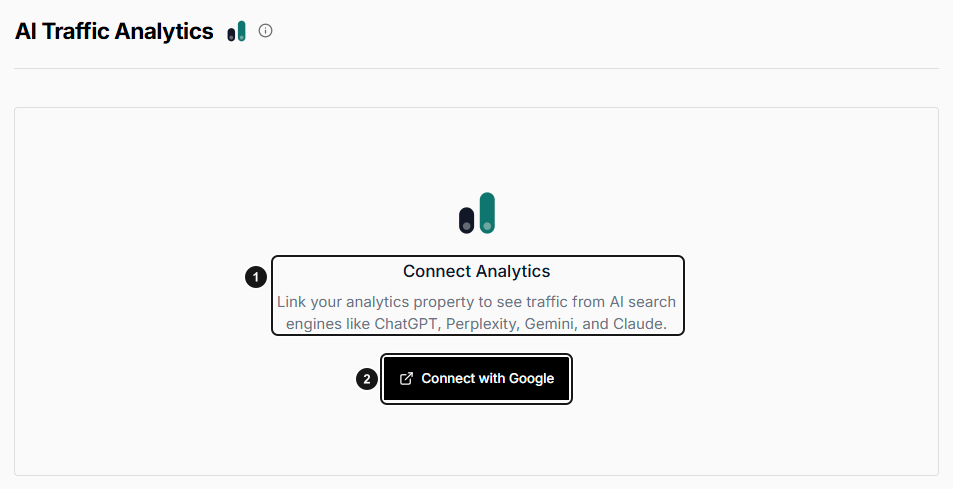
EarlySEO with Google Analytics not yet connected. 1. Connect Analytics setup state. 2. Start Google Analytics connection. This is the connection entry point, not a selected property or a traffic report.
Verify the result
Use All Sources and a suitable date range first. Compare the matching source traffic with GA4 before assuming an empty result is a connection problem. The report only includes recognized AI-related session sources, not all property traffic.
The same property/range/source report can be reused for four hours. Data through reflects the latest returned series date; neither reloading the page nor a recent connection guarantees today's complete data.
Conversion Settings opens project settings, but the current report reads GA4's conversions metric rather than filtering to the event-name list stored there. See metric definitions and export behavior.
Disconnect or change property
Use Change property to choose another accessible GA4 property. Subsequent reports use that property; the operation does not combine properties or modify GA4's underlying records.
Use Disconnect to remove the stored GA4 credential, mark the integration disconnected, and clear the project's selected GA4 property. Reconnect and select a property before expecting new authenticated reports. This is not a report-history erasure operation and does not delete analytics in Google.
EqualAI's disconnect is not a Google-side consent revocation. If access must also be revoked at Google, review the application's access in your Google account. Revoking a Google grant can affect other features using that account authorization, so coordinate with your administrator.
Troubleshooting
| Symptom | Next check |
|---|---|
| No GA4 properties found | Confirm the Google account's property access, then reconnect with the appropriate account. |
| Permission or authorization error | Ask a workspace administrator to reconnect and review Google's requested consent. |
| Connected but zero AI traffic | Check the property, date range, and GA4 session-source attribution. Missing AI referrers are not proof of no AI influence. |
| Old data | Review Data through and allow for the report cache and upstream availability. |
| Export did not download a file | Export in Top Landing Pages copies CSV to the clipboard. Paste it into a spreadsheet. |
Do not share OAuth tokens or private analytics exports while troubleshooting.